1. In order to become pro you must read the manual.
2. You must be a noob in order to become pro.
3. Being pro at one thing does not make you pro at all things.
4. Being pro today does not mean that you will be pro tomorrow.
5. Just because someone is pro does not mean that you should listen to them.
6. Just because someone is a noob does not mean that you should ignore them.
7. Knowing your weakness is being pro.
8. Using your strength is being pro.
9. Being lazy is being pro.
10. Working hard is being a noob.
Sunday, March 30, 2008
Tuesday, February 26, 2008
Disable the Show Repairs Message in Word 2007
When using Word 2007 to open a damaged Word DOC, you may encounter the popup window below:
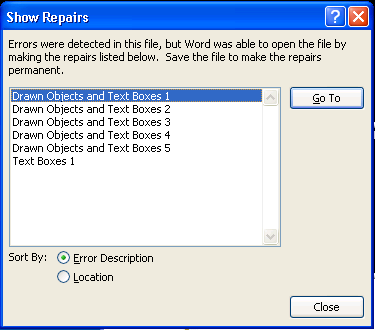
Although it's nice to know that errors were detected in this file, but Word was able to open the file by making the repairs, this can get tiresome if you have to work with a lot of damaged files.
Should you want to disable this popup from appearing, you can do so by opening your Registry Editor and performing the steps below.
Please note that editing your registry can prevent your computer from booting. Follow the steps below at your own risk:
1. Open the registry editor and browse to:
HKEY_CURRENT_USER\Software\Microsoft\Office\12.0\Word\Options
2. Create a new DWORD value and name it:
BulletProofOnCorruption
3. Set the value to:
1
4. Now when you open a corrupt file you should not see the Show Repairs popup window.
References:
Thanks to Microsoft for this tip.

Although it's nice to know that errors were detected in this file, but Word was able to open the file by making the repairs, this can get tiresome if you have to work with a lot of damaged files.
Should you want to disable this popup from appearing, you can do so by opening your Registry Editor and performing the steps below.
Please note that editing your registry can prevent your computer from booting. Follow the steps below at your own risk:
1. Open the registry editor and browse to:
HKEY_CURRENT_USER\Software\Microsoft\Office\12.0\Word\Options
2. Create a new DWORD value and name it:
BulletProofOnCorruption
3. Set the value to:
1
4. Now when you open a corrupt file you should not see the Show Repairs popup window.
References:
Thanks to Microsoft for this tip.
Friday, May 18, 2007
Format a flash drive on Windows XP for Mac OS X and Windows XP.
Today I spoke with a coworker who mentioned the need to be able to read their USB flash drive on both their Apple desktop running OS X, and their other computer running Windows XP.
Below are the instructions I sent them on how to format the drive in Windows XP so that it can be read by both computers:
1. In Windows XP, insert your USB drive, then go into Start | Right click on “My Computer” and click Manage.
2. Go into Computer Management (Local) | Storage | Disk Management

3. Browse to the partition you want to format in the lower right hand part of the window, right click on it and select Format.

Please note that this will destroy all of the data on the partition. Please practice safe computing and back up your data prior to formatting the drive.
4. Finally, select FAT 32, name the volume and click OK.

5. One more friendly reminder that you will be erasing all of the data on the partition:

Click OK, and your drive will be formatted:

Now you can rest easy knowing that your bits can talk freely when placed in your DRM infested computer of choice.

Wednesday, May 9, 2007
Do you want to update version 'NVIDIA nForce4 Driver v666' now?
While updating the motherboard drivers for my computer today, I saw the curious message below:

Although this might deter more cautious computer users, I fear neither man nor driver. I installed the drivers, they work well, and I have not noticed any dark omens since updating.
However, I’d hope that at least one person at MSI would suggest that they should just use the Neighbor of the Beast (667), instead of the Number of the Beast (666). And perhaps add a question mark to the end of the message.
Just remember, you can always roll back any drivers you install. This helps if your driver begins to act out, or just plain gives you the willies.
To do this in Windows XP, go into Start | Control Panel | System | Hardware | Device Manager. Select the driver you wish to roll back, right click it and go into Properties | Driver | Roll Back Driver.
Your previously installed driver will be reinstalled, and hopefully you'll be back in business.
Subscribe to:
Posts (Atom)